 crabsmith
Terminal
On this page
Open an interactive terminal on any server directly in your browser—logged in as crab (with passwordless sudo, so sudo -i opens a root shell if you need one).
Open a terminal
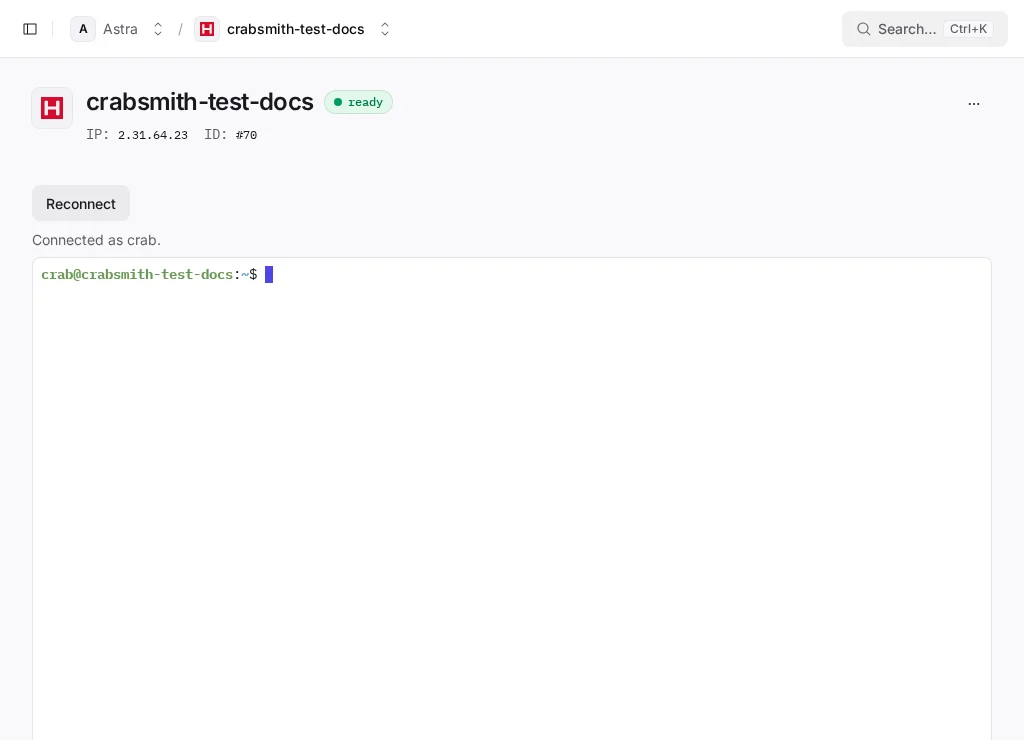
- Open your server's Terminal tab and click Start shell.
- Use it like any terminal: colors, copy/paste, and full-screen tools like
htoporvimall work, and the terminal resizes with your browser window. - To move keyboard focus out of the terminal, press
EscthenTab. On a phone, an on-screen bar gives quick access toEsc,Tab,Ctrl, and arrow keys.
To run a quick one-off command (like php artisan or npm) in a site's folder, use the site's Commands tab. For a full interactive session in a site's folder, open the server's Terminal tab and run cd /home/crab/<original-domain>.
Good to know
- Closing or refreshing the browser tab ends the shell session. For processes that should stay running, use a daemon or schedule.
- Idle terminals close automatically after 30 minutes.
- You can have up to 4 terminals open at the same time.
- Type
exitor pressCtrl+Dto close a session; click Start shell to open a new one.
When it won't connect
If you see "The server could not be reached", check the SSH error shown (such as Connection refused or Host key changed) and see Troubleshooting. A server must finish initial setup before you can open a terminal on it.