 crabsmith
SSH keys
On this page
Save your SSH public keys once in your Crabsmith account, then add them to any server so you can log in as crab (with passwordless sudo). Your saved keys are private to your account—other workspace members can't see them.
Save a key to your account
- Copy your public key from your computer—for example, run
cat ~/.ssh/id_ed25519.puband copy the whole line. Never paste your private key. - Open Account settings from the account menu at the bottom of the sidebar (or More → Account on a phone), go to SSH keys, click Add key, give it a name, paste the public key, and click Save key.
Removing a saved key from your account doesn't remove it from servers where it was already installed.
Add keys when creating a server
When you add a server or create one on DigitalOcean, Hetzner, Vultr, or UpCloud, Crabsmith lists your saved keys with all of them checked by default. Once setup finishes, you can connect directly:
ssh crab@your-server-ip
# Or with a non-default SSH port:
ssh -p 2222 crab@your-server-ip
Add or remove keys on an existing server
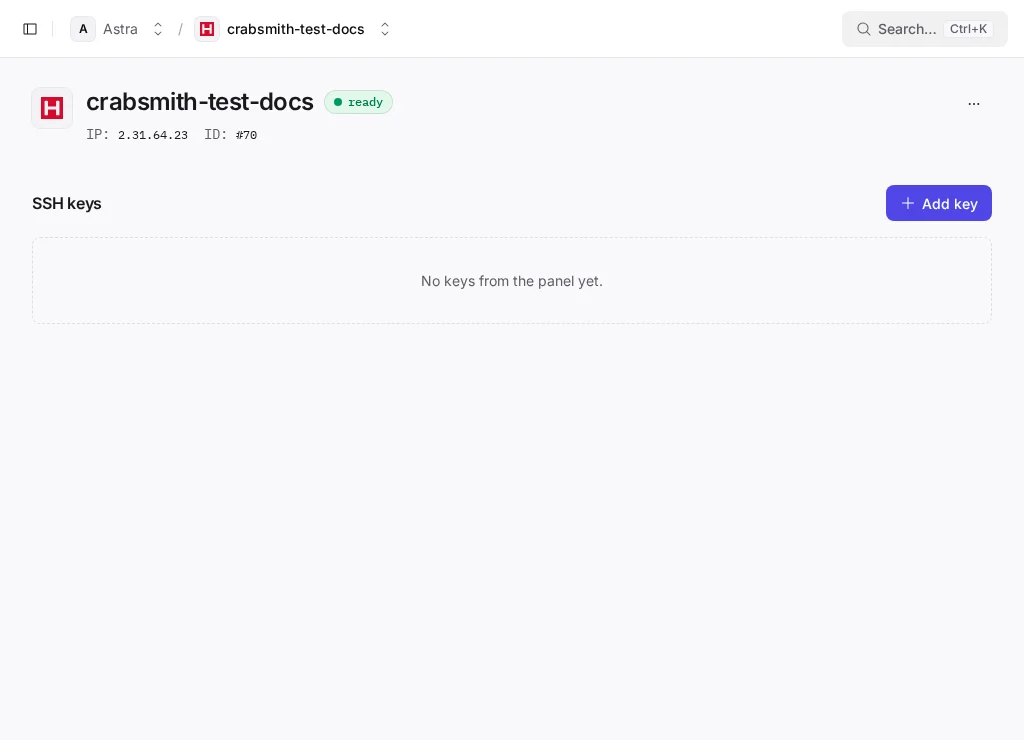
- Open the server's SSH keys tab.
- Add one of your saved keys, or paste a new public key with a name.
- Click Remove on any key to revoke SSH access for that key. (Any SSH session already open stays connected until it closes.)
Keys you added manually to /home/crab/.ssh/authorized_keys on the server aren't listed here and are left untouched.
Troubleshooting
- "Is a private key": paste the
.pubfile instead of the private key. - "Not a whole public key": the key was cut off—copy the entire single line again.
Permission denied (publickey): make sure the key shows as active on the server's SSH keys tab, and pass the matching private key if needed (ssh -i ~/.ssh/id_ed25519 crab@your-server-ip).