 crabsmith
Daemons
On this page
Keep long-running processes alive on your server automatically—ideal for Node.js or Next.js apps, CrabPHP servers, Laravel queue workers, and Symfony Messenger consumers. Crabsmith only manages daemons created here and leaves your other server services alone.
Create a daemon
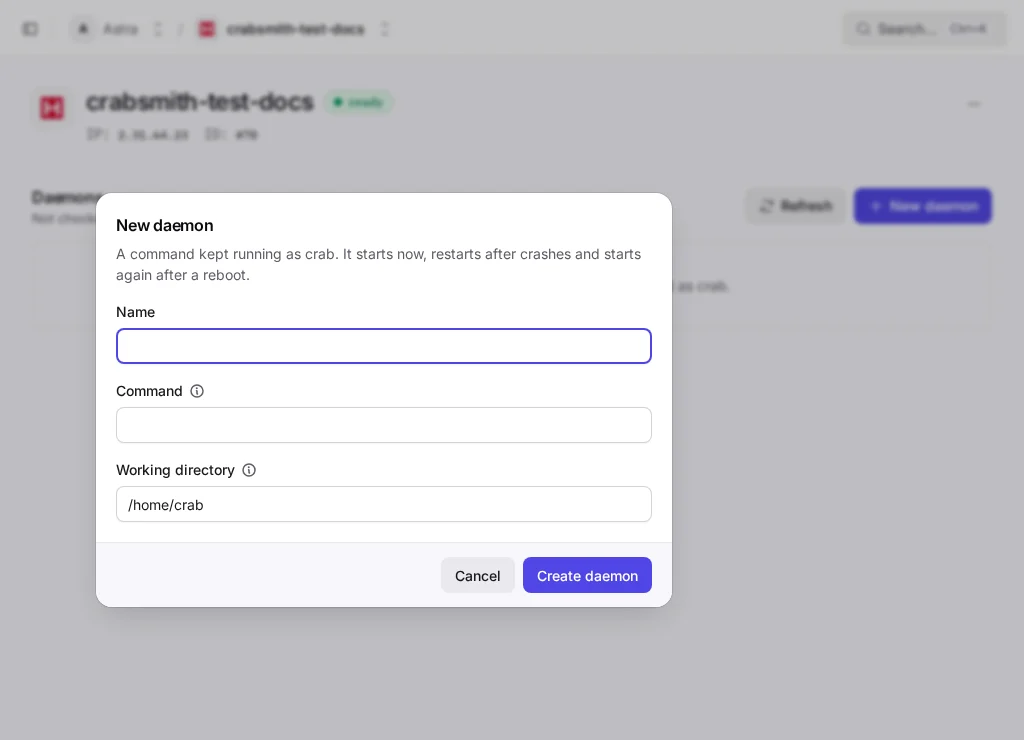
- Open your server's Daemons tab (or a site's Processes tab) and click New daemon.
- Enter a lowercase Name (for example
queueorapp). - Enter the one-line Command and an existing Working directory (defaults to
/home/crab, or the site's folder when created from a site). - Click Create daemon to create and start it right away (daemons start on boot automatically).
Good to know:
- Restart on deploy: for an app server or queue worker, copy the restart command shown on the daemon's row (
sudo systemctl restart crabsmith-daemon-<id>) and paste it into your site's deploy script so every deploy loads your new code. - Auto-restart: if a daemon crashes or exits, Ubuntu restarts it automatically.
- User & environment: commands run as
crab(neverroot). Your app's.envfile isn't loaded automatically unless your command loads it. - Independent of the panel: daemons run directly on your server, so they keep running even when you aren't logged into Crabsmith.
Start, stop, restart, and delete
- Start / Stop / Restart: controls the running process without changing your Start on boot setting.
- Save and restart: applies your edits and restarts the daemon immediately.
- Refresh: checks the live status on the server.
- Delete: stops and removes the daemon. Your application files and working directory are never deleted.
View logs
Click Logs on any daemon to see its recent output, and click Refresh to load new lines.
When something fails
- Open the failed operation to check if the working directory is missing or the runtime isn't installed.
- If the daemon starts and immediately crashes, open Logs to see the error printed by your app.
- Fix the command or issue, then click Save and restart (or Retry on the failed operation).
- For server connection issues, see Troubleshooting.