 crabsmith
Servers
On this page
Connect any Ubuntu 24.04 or 26.04 server you already own, or create a new server on DigitalOcean, Hetzner, Vultr, or UpCloud directly from Crabsmith.
Add a server you own
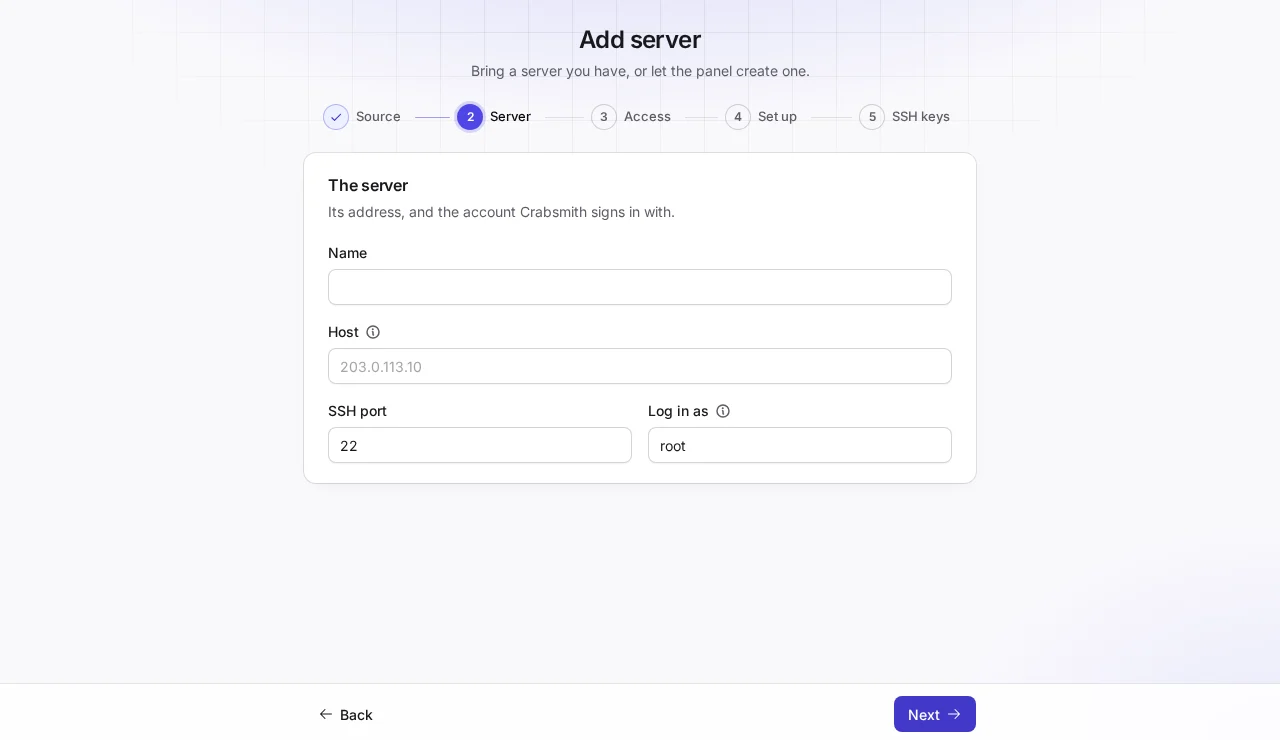
Before starting, make sure your server runs Ubuntu 24.04 or 26.04 and that your cloud provider's external firewall allows:
- Your SSH port (default
22) from the internet - TCP ports
80and443if the server will host websites
Then in Crabsmith:
- Open Servers and choose Add server.
- Enter a Name, the server's Address (IP or hostname), SSH port, and Login user (
root, or a user with passwordlesssudo). - Authorize Crabsmith's SSH key using one of two methods:
- Password: enter the server's password (6–32 characters). Crabsmith uses it once to install its public key and never stores it. If your password is longer than 32 characters or password login is disabled, use I will run a command instead.
- I will run a command: copy the command shown and run it as your login user in your provider's console or SSH session. (If you already added the panel's public key at your provider, you can continue without running it again.)
- Under Services, check what this server needs—Caddy is selected by default for web servers; uncheck it for a database-only or worker server.
- On the SSH keys step, select your personal SSH public key (see SSH keys) if you want to keep SSH access yourself. Setup disables SSH password login by default—if you don't use an SSH key yet, uncheck Turn off SSH password login before continuing.
- Choose Add and set up.
Setup creates the crab user, configures swap (if none exists), enables automatic security updates and UFW (SSH, 80, 443), and applies your SSH hardening choice. Once setup finishes, each chosen service installs as its own operation.
Create a server on DigitalOcean, Hetzner, Vultr, or UpCloud
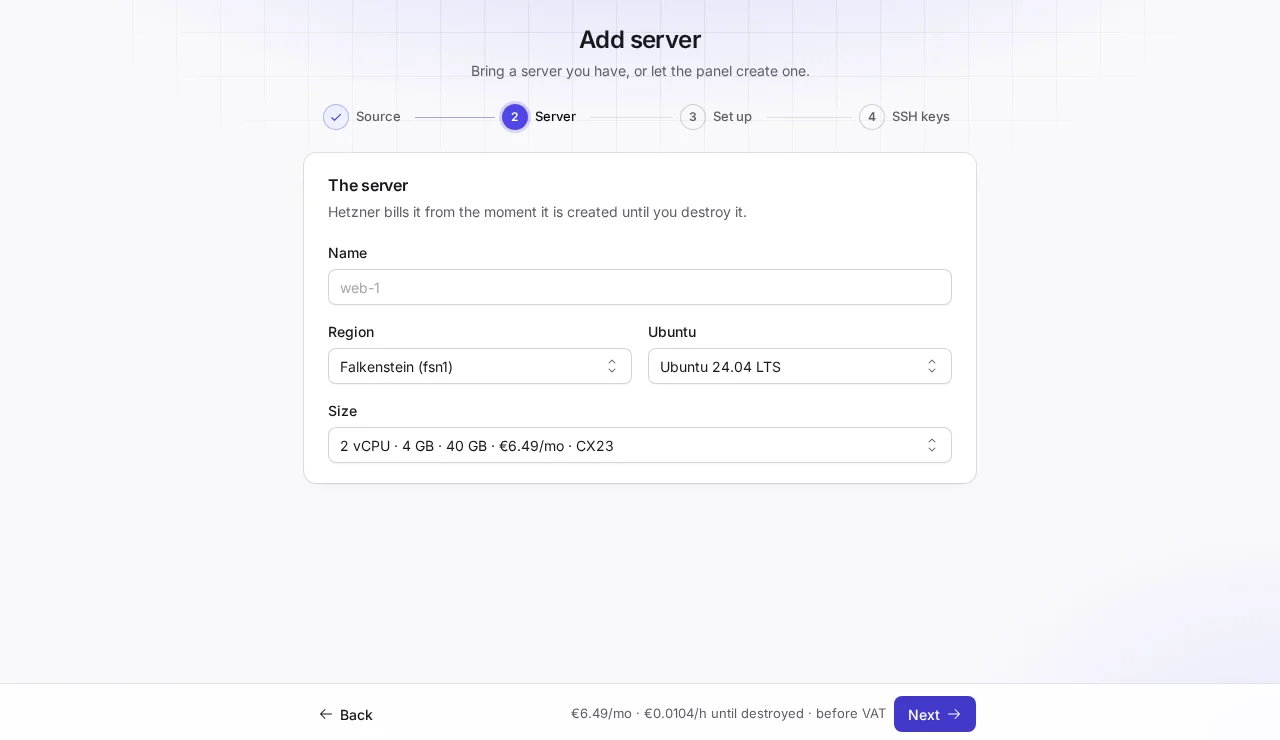
Crabsmith can create and set up a new server in your own cloud account—your cloud provider bills you directly with zero markup.
- Create an API token in your cloud provider's dashboard:
- DigitalOcean: create a personal access token with read and write scope.
- Hetzner: create a Read & Write API token inside the Hetzner Cloud project you want to use.
- Vultr: enable the API and allow Crabsmith's IP address in Vultr's Access Control list.
- UpCloud: create an API token with permission to create servers and SSH keys.
- In Crabsmith, choose Add server and pick Create on DigitalOcean, Create on Hetzner, Create on Vultr, or Create on UpCloud.
- The first time, name the account and paste your token. Crabsmith verifies it and stores it encrypted. (You can manage or disconnect accounts anytime in Cloud providers.)
- Enter a server name and pick the Region, Size (with live prices, sorted cheapest first), Ubuntu version (24.04 or 26.04), and Network/VPC (on DigitalOcean, use + to create a new VPC in that region).
- Review the setup options and choose Create and set up.
Crabsmith adds its SSH public key to your cloud account once, creates the server, waits for it to boot, and runs setup automatically.
Status, restart, and settings
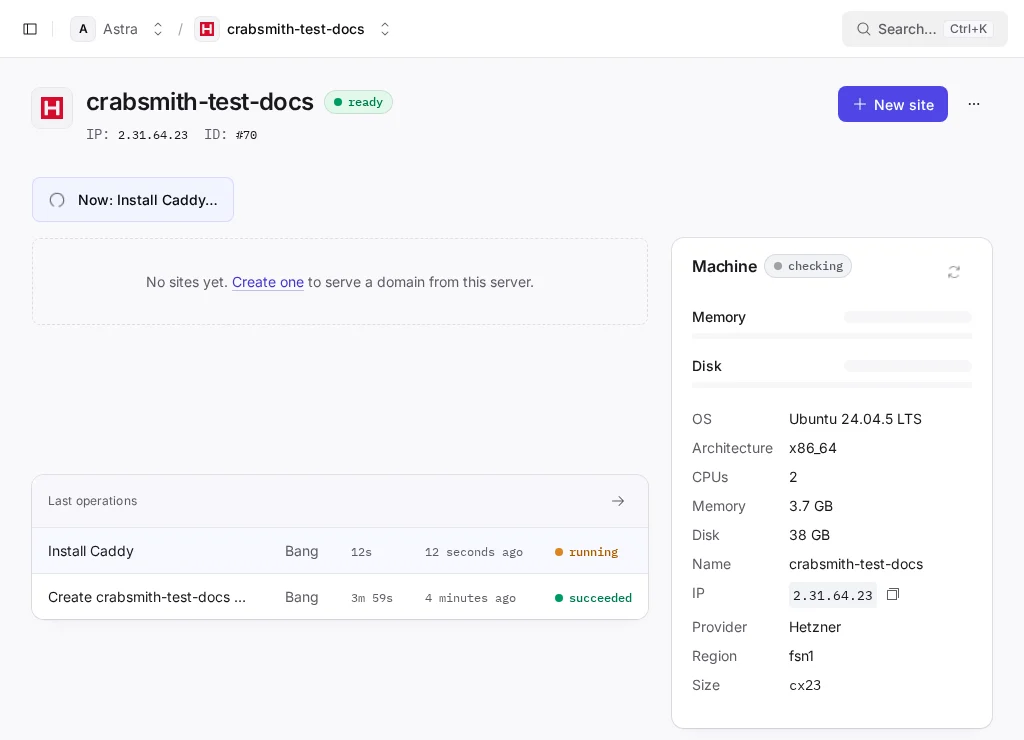
- Overview: shows server specs from setup alongside live load, memory, disk, reboot-needed status, and service states. Use Refresh to check the server right now.
- Restart: choose Restart in the server header to reboot the machine. Sites and services pause for a minute or two until it comes back online.
- Settings: rename the server, update its IP/address, re-run setup (safe to repeat), or Forget it. Forgetting removes the server from Crabsmith only—your machine and its files stay untouched.
Private networks
Servers on the same private network talk over private IP addresses—free and off the public internet. This is the recommended way for an app server to reach a separate database server.
- DigitalOcean: place both servers in the same region and VPC when creating them. (A Droplet cannot change VPC after creation, and different regions do not share a VPC.)
- Other providers (Hetzner, Vultr, UpCloud, LAN): attach your servers to the same private network in your provider's dashboard first.
Crabsmith detects each server's private IP during setup and status checks, and shows it under the server's name. Wherever one server allows another in—such as a database user's Connects from or a firewall rule's source—pick From another server and Crabsmith fills in the private IP automatically when they share a network (or the public IP otherwise).
Example: app server + dedicated database server
- Create both servers in the same region and private network/VPC. On the database server, uncheck Caddy and select MySQL or PostgreSQL.
- On the database server's Databases tab, create your database and user, then edit the user's Connects from to An address → From another server and pick your app server. Crabsmith opens the database port in UFW for that server's private IP automatically and requires TLS.
- In your app's Environment tab, set the database host to the database server's private IP (shown under its name on the Overview tab) and enable TLS/SSL in your database driver.
Security model
Everything Crabsmith runs on a server—PHP-FPM, daemons, schedules, deploys, and the terminal—runs as a single user, crab, with passwordless sudo.
Crabsmith connects with its own SSH key, never yours. If you remove that public key from the server, Crabsmith loses access immediately while your sites keep running.
When it fails
- Password refused: verify the login user and password, and check that the server allows SSH password login. If password login is disabled, use I will run a command instead.
- Too many attempts: up to 5 password authorization attempts per minute are allowed per server. Wait a minute before trying again.
- Host key changed: verify the server's identity independently before using Reset host key in Settings. Never reset just to silence an unexpected warning.
See Troubleshooting for more diagnostics.