 crabsmith
Firewall
On this page
Control which network ports are open on your server using Ubuntu's UFW firewall.
Enable the firewall
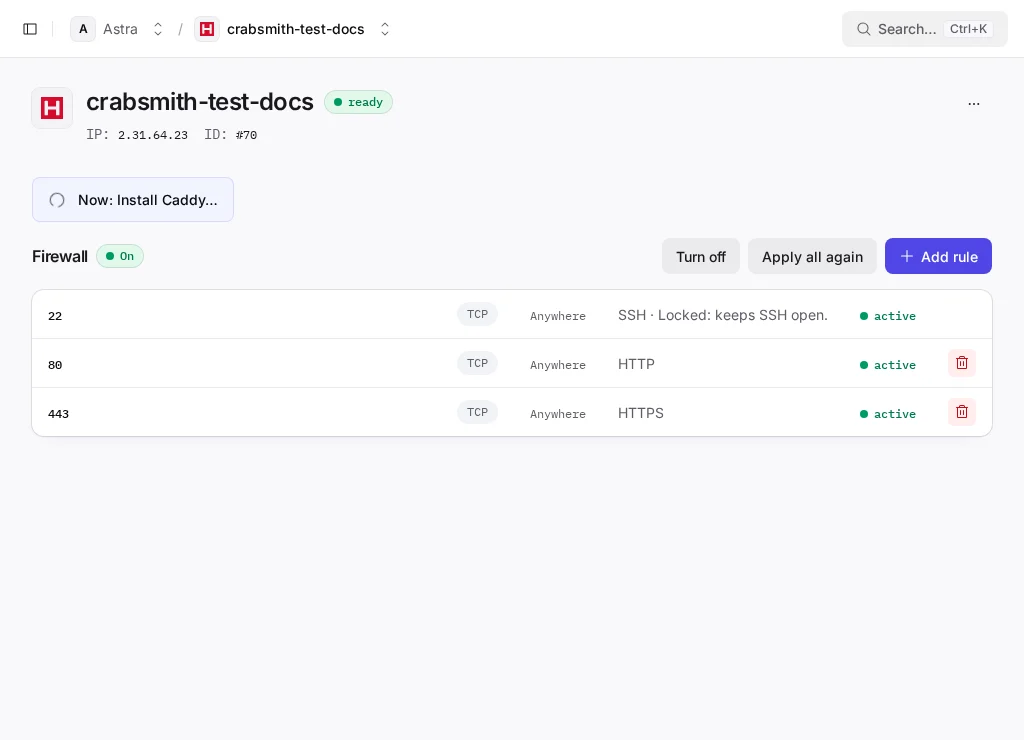
- Open your server's Firewall tab and click Turn on.
- Crabsmith installs UFW (if needed), allows your SSH port first so you don't get locked out, allows HTTP (
80) and HTTPS (443), and blocks all other incoming traffic. Outgoing traffic stays allowed.
Add or remove rules
- Click Add rule and enter a port (for example
3306) or a port range (9000:9010), choose the protocol (TCPorUDP), and optionally restrict the source IP or CIDR. - To allow traffic from another server in your workspace (for example, an app server connecting to a database server), choose Allow another server. Crabsmith automatically uses the private IP when both servers share a private network.
- Click Remove on any non-locked rule row to delete it.
- Click Apply all again anytime to reapply your saved rules. Any rules you added manually on the server stay visible in the live status and aren't removed.
- Click Turn off to disable UFW without losing your saved rules.
When something is still blocked
If a port is open in Crabsmith's Firewall tab but still unreachable from outside, check your cloud provider's external firewall or security group settings as well.