 crabsmith
How to Safely Update and Reboot an Ubuntu Server (Zero Surprises)
Safe step-by-step routine to update an Ubuntu 24.04/26.04 production server, avoid config prompt hangs, check reboot-required, and verify services after reboot.
· 7 min read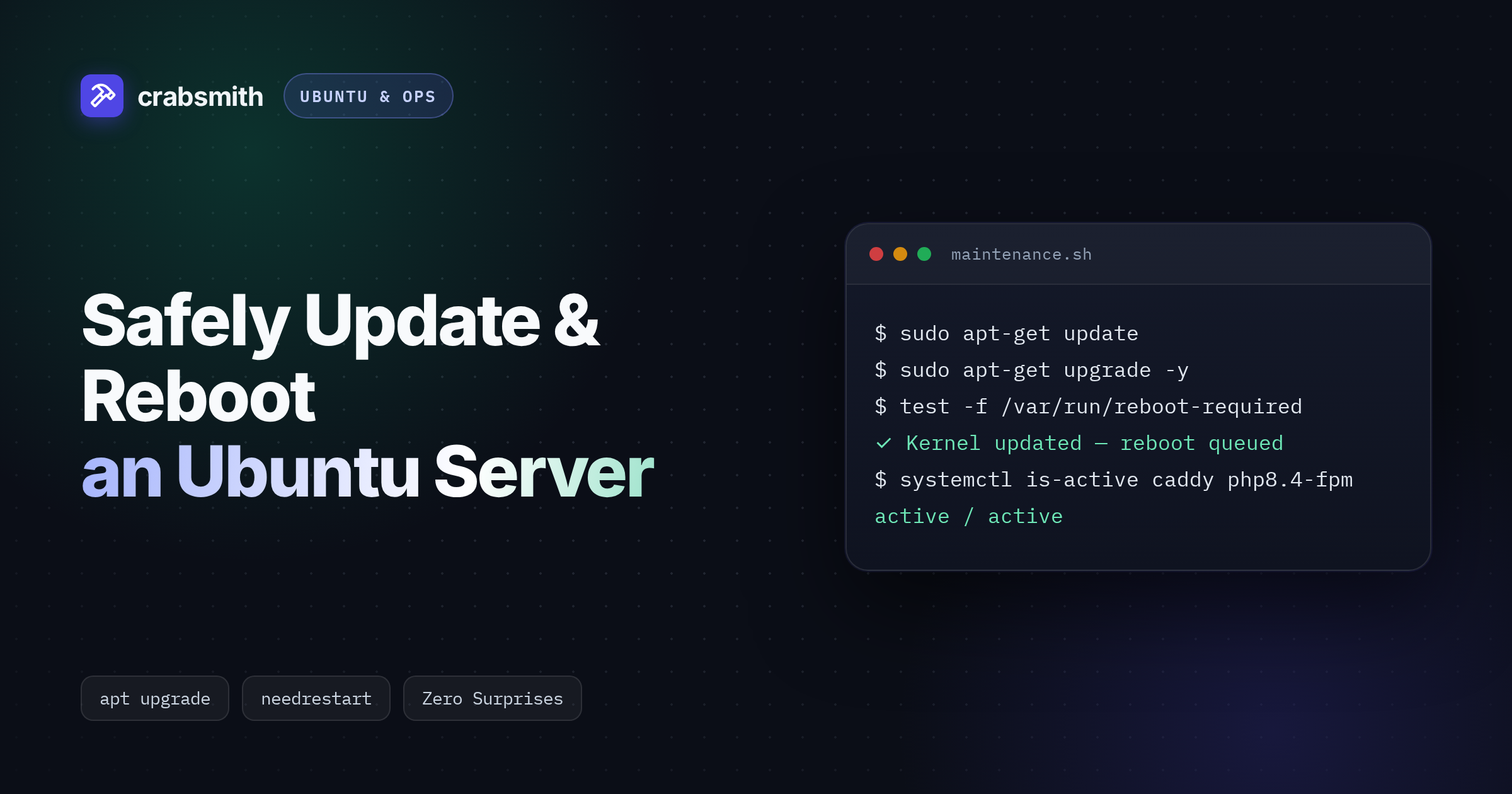
On this page
Knowing how to safely update server Ubuntu packages in production without accidentally taking down Caddy, PHP-FPM, PostgreSQL, or a live queue worker is one of those unglamorous ops skills that separates calm engineers from stressed ones.
Everyone knows sudo apt update && sudo apt upgrade on a laptop. On a live Ubuntu 24.04 LTS or 26.04 LTS production server, running that blindly can bite you in four ways:
dpkgpops up an interactive ncurses prompt asking whether to keep or overwrite your modified/etc/caddy/Caddyfileorphp.ini— stalling your SSH session or hanging an automated script.- A PostgreSQL, MySQL, or PHP-FPM upgrade restarts the service mid-request during peak traffic.
- A kernel or
glibcsecurity patch installs cleanly, but never actually takes effect because you didn't check/var/run/reboot-requiredor restart daemons still holding old shared libraries in memory. - Old kernels pile up until
/bootor/hits 100% disk andaptbreaks halfway through an upgrade.
This is the exact, repeatable maintenance routine I run on Ubuntu 24.04 and 26.04 production servers — zero interactive hangs, zero config clobbers, safe package holds, clean recovery from dpkg locks, and full post-reboot verification.
(Setting up a fresh VPS first? Start with our Ubuntu 24.04 server setup checklist.)
Step 1: Check Disk Space, Active Load, and Pending Packages First
Before touching apt, take 15 seconds to verify your disk has plenty of breathing room and see what is about to upgrade:
df -h / /boot /var
uptime
sudo apt-get update
apt list --upgradable
Scan that upgradable list with a senior engineer's eye:
- Routine low-risk patches:
curl,git,tzdata,ca-certificates,libssl3t64,openssh-server. Safe almost anytime. - Service-restarting packages:
caddy,php8.4-fpm,postgresql-*,mysql-server-*,redis-server. These will briefly reload or restart their daemons — run them during low-traffic hours or a quick maintenance window. - Kernel & core C library:
linux-image-*,libc6,systemd. These require a planned reboot (or service restarts vianeedrestart) before the patched code is actually running in memory.
If df -h / is over 85% full, clean up old logs (sudo journalctl --vacuum-size=200M) or old packages before upgrading so dpkg never runs out of space mid-unpack.
Step 2: Run the Non-Interactive Update Server Ubuntu Command
Never let apt overwrite a config file you carefully tuned — and never let an interactive debconf dialog hang your terminal. Set DEBIAN_FRONTEND=noninteractive and pass --force-confdef + --force-confold:
sudo DEBIAN_FRONTEND=noninteractive apt-get upgrade -y \
  -o Dpkg::Options::="--force-confdef" \
  -o Dpkg::Options::="--force-confold"
What do those two Dpkg::Options actually do?
--force-confdef: If you never edited a package's config file, letdpkgapply the maintainer's updated default cleanly.--force-confold: If you did edit a config file, keep your existing file and save the package maintainer's new version beside it as*.dpkg-distso you can inspect any diff later without breaking production.
apt-get upgrade vs. apt-get full-upgrade (Know the Difference)
Notice that apt-get upgrade will occasionally hold back new Linux kernel packages (The following packages have been kept back: linux-image-generic ...) because installing a new kernel requires adding a brand-new package name (linux-image-6.8.0-xx-generic).
To pull in those held-back kernel security patches safely, preview first with --dry-run (-s) to make sure nothing important is being removed, then run full-upgrade:
# Always preview removals first on production!
sudo apt-get full-upgrade -s | grep -E '^(Remv|Inst)'

# Apply when it looks clean
sudo DEBIAN_FRONTEND=noninteractive apt-get full-upgrade -y \
  -o Dpkg::Options::="--force-confdef" \
  -o Dpkg::Options::="--force-confold"
Then prune old unused kernels and cached .deb files so your NVMe disk stays lean:
sudo apt-get autoremove --purge -y && sudo apt-get clean
Step 3: Check Whether a Reboot (or Service Restart) Is Required
This is the step most people skip — and it's why servers stay vulnerable to patched OpenSSL or kernel CVEs for months after apt upgrade succeeded.
Check for a full kernel / glibc reboot
Ubuntu creates /var/run/reboot-required whenever an upgraded package needs a kernel reboot to take effect:
if [ -f /var/run/reboot-required ]; then
  echo "Reboot required by:"
  cat /var/run/reboot-required.pkgs 2>/dev/null || true
else
  echo "No reboot needed."
fi
Check which running daemons still hold outdated libraries in memory
Even when no kernel reboot is needed, updating libssl3t64 or libpcre2 leaves already-running services (like Caddy, PHP-FPM, or PostgreSQL) executing the old shared library in RAM until they're restarted. Ubuntu 24.04 and 26.04 include needrestart to spot these instantly:
sudo needrestart -r l
(-r l means list only — it won't unexpectedly restart your database behind your back.)
Once you see which services are outdated, reload or restart them cleanly one by one:
sudo systemctl reload caddy
sudo systemctl reload php8.4-fpm
Step 4: Reboot Cleanly and Run a 30-Second Post-Reboot Verification
When /var/run/reboot-required is present:
- If you run queue workers (like Laravel
queue:work), stop them gracefully first (sudo systemctl stop laravel-worker) so no background job gets killed mid-transaction. - Trigger a clean reboot:
sudo systemctl reboot
Wait 20–40 seconds for your VPS to come back up, SSH back in, and run this four-line health check every single time:
# 1. Confirm new uptime and running kernel version
uptime && uname -r

# 2. Confirm zero failed systemd units anywhere on the box
systemctl --failed

# 3. Verify your core stack came back active
systemctl is-active caddy php8.4-fpm postgresql redis-server 2>/dev/null || true

# 4. Hit your live HTTPS endpoint
curl -fsS -o /dev/null -w "HTTP %{http_code} in %{time_total}s\n" https://example.com/
systemctl --failed should return 0 loaded units listed. If anything failed to start on boot, inspect it immediately with journalctl -u SERVICE_NAME -b --no-pager (-b filters strictly to the current boot).
Step 5: Automate Daily Security Patches Safely With unattended-upgrades
Manual updates are great for monthly maintenance, but zero-day OpenSSH or OpenSSL patches shouldn't wait 25 days for your calendar reminder. Enable Ubuntu's built-in unattended-upgrades for the security pocket:
sudo apt-get install -y unattended-upgrades
sudo dpkg-reconfigure -f noninteractive unattended-upgrades
Verify the config in /etc/apt/apt.conf.d/50unattended-upgrades:
- Keep
${distro_id}:${distro_codename}-securityenabled so CVE fixes apply automatically every night. - Keep
Unattended-Upgrade::Automatic-Reboot "false";on single-server production boxes so you decide when a reboot happens (or set a deliberate off-peakAutomatic-Reboot-Time "04:00";if you run redundant load-balanced app nodes). - Check the upgrade log anytime with
tail -n 50 /var/log/unattended-upgrades/unattended-upgrades.log.
Step 6: Holding Critical Packages & Recovering From apt Locks
Two real-world apt scenarios every Linux engineer eventually hits in production:
Temporarily pinning a critical package with apt-mark hold
Suppose you want to apply OS security patches today, but you do not want PostgreSQL or Caddy restarting until tonight's scheduled maintenance window. Pin that package cleanly and unpin it afterward:
# Pin PostgreSQL during daytime patching
sudo apt-mark hold postgresql-16

# See all currently held packages
apt-mark showhold

# Unpin when you're ready for the maintenance window
sudo apt-mark unhold postgresql-16
Handling Could not get lock /var/lib/dpkg/lock-frontend safely
Never blindly run rm /var/lib/dpkg/lock-frontend! Nine times out of ten, Ubuntu's background unattended-upgrades timer is actively installing a security patch right then. Check what holds the lock first:
sudo lsof /var/lib/dpkg/lock-frontend /var/lib/apt/lists/lock 2>/dev/null
If unattended-upgr is running, wait 20 seconds and let it finish cleanly. Only if an SSH connection dropped mid-upgrade and left dpkg interrupted should you recover with:
sudo dpkg --configure -a
sudo apt-get install -f
Step 7: Review .dpkg-dist Configs & Clean Up Old Kernels
Because we passed --force-confold in Step 2, Ubuntu leaves your customized configs untouched and drops any new maintainer defaults next to them as *.dpkg-dist. Once a month, spend 30 seconds checking if any upstream config changed in a way you care about:
sudo find /etc -name '*.dpkg-dist' -o -name '*.ucf-dist' 2>/dev/null
If you see one (for example /etc/ssh/sshd_config.dpkg-dist), inspect it with diff -u /etc/ssh/sshd_config /etc/ssh/sshd_config.dpkg-dist, adopt any useful new defaults, and delete the .dpkg-dist file so /etc stays spotless.
Similarly, check how many kernels remain installed with dpkg -l 'linux-image-*' | awk '/^ii/{print $2}'. Ubuntu normally keeps your running kernel plus one previous fallback kernel — if you ever see five or six old kernels listed, sudo apt-get autoremove --purge -y frees hundreds of megabytes immediately and prevents /boot from ever filling up.
Major LTS Upgrades: do-release-upgrade vs. Fresh Server Cutover
One last senior-engineer opinion that will save you a weekend of pain: never run do-release-upgrade in place on a production VPS (for example, upgrading Ubuntu 24.04 LTS to 26.04 LTS) if you can avoid it. In-place OS upgrades disable third-party PPAs, leave behind obsolete PHP/Postgres versions, and take your server offline for 20+ minutes with an ugly rollback path.
Instead, spin up a brand-new Ubuntu 26.04 LTS VPS alongside the old one, install your clean Caddy + PHP/Node + DB stack, sync your database over SSH, test with /etc/hosts, and flip DNS with zero downtime. You get a spotless OS and an instant rollback if anything looks off.
A Simple Monthly Patching Cadence That Scales
If you manage three to ten Ubuntu VPSes, don't wait until a random Friday night to remember patching. Pick one quiet 15-minute window each month (say, the first Tuesday morning):
- Run
apt-get update && apt list --upgradableacross your boxes, starting with staging first so you catch any weird PPA or PHP extension regression before production. - Apply upgrades non-interactively, verify
needrestart -r l, and reboot only boxes that actually flagged/var/run/reboot-required. - Verify
systemctl --failedis0and check disk usage (df -h /) so nothing ever sneaks up on you.
Quick Reference: Safe Ubuntu Maintenance Commands
| Task | Safe Production Command |
|---|---|
| Preview pending updates | sudo apt-get update && apt list --upgradable |
| Non-interactive upgrade | sudo DEBIAN_FRONTEND=noninteractive apt-get upgrade -y -o Dpkg::Options::="--force-confdef" -o Dpkg::Options::="--force-confold" |
| Check outdated libraries in RAM | sudo needrestart -r l |
| Check if reboot is needed | test -f /var/run/reboot-required && cat /var/run/reboot-required.pkgs |
| Clean old kernels & apt cache | sudo apt-get autoremove --purge -y && sudo apt-get clean |
| Post-reboot health check | systemctl --failed && uname -r |
Keep an Eye on Server Health, Services, and Reboots From One Place
Crabsmith is a hosted control panel that manages your Ubuntu 24.04 and 26.04 servers over agentless SSH — giving you one-click server status, service health, live logs, safe reboots (Servers), native systemd worker management (Daemons), and firewall control (Firewall) without installing any proprietary agent on your VPS.
Try it on your Ubuntu servers with a 7-day free trial (no credit card required), or browse Getting started and Services.