 crabsmith
How to Deploy Laravel on an Ubuntu VPS (Caddy & Auto HTTPS)
Complete guide to deploy Laravel on an Ubuntu 24.04/26.04 VPS with Caddy automatic HTTPS, PHP 8.4-FPM, repeatable deploys, systemd queue workers, and UFW.
· 7 min read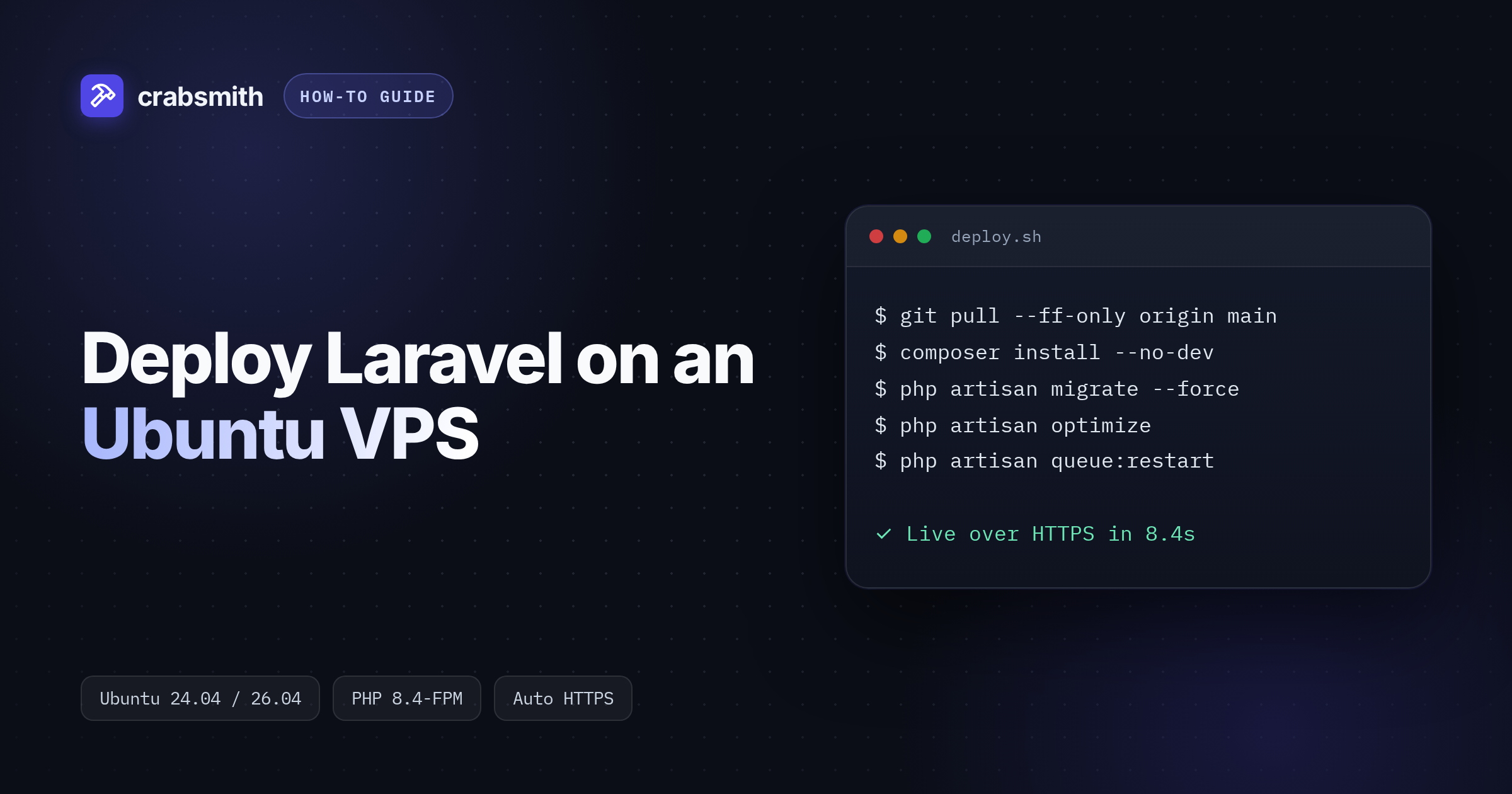
On this page
There is something genuinely satisfying about watching a Laravel app fly on a $5/mo Ubuntu VPS that you actually understand from top to bottom. No Kubernetes YAML, no Docker image build eating half your disk, no surprise usage-based bandwidth bill — just Linux, Caddy, PHP 8.4-FPM, a database bound to 127.0.0.1, and native systemd units doing their job quietly for months.
If you want to deploy Laravel on Ubuntu VPS hardware from Hetzner, DigitalOcean, Vultr, Linode, or AWS Lightsail, this is the complete production blueprint I actually use on Ubuntu 24.04 LTS and 26.04 LTS. We're not skipping the boring-but-critical parts: SSH hardening, PHP-FPM pool permissions, OPcache tuning, repeatable deploy scripts, systemd queue workers, cron schedulers, automated off-server database backups, and debugging the four most common production failures.
(Want the automated version on a clean hosted panel? See our Deploy Laravel landing page. Using Hetzner specifically? We also have a dedicated Hetzner Cloud Laravel tutorial.)
What You Need Before You Touch the Terminal
Keep your starting setup minimal and predictable:
- A fresh Ubuntu 24.04 LTS or Ubuntu 26.04 LTS VPS: 1 GB RAM works for tiny hobby apps with SQLite, while 2–4 GB RAM (like a €4 Hetzner CX22 or $12 DigitalOcean droplet) is the sweet spot when running PHP-FPM + PostgreSQL/MySQL + Redis on the same box.
- An Ed25519 SSH key added during VPS creation (
ssh-keygen -t ed25519). Don't rely on root passwords. - A domain name with an
Arecord pointed at your VPS IPv4 address (andAAAAif you use IPv6).
SSH in as root for the initial bootstrap:
ssh root@YOUR_SERVER_IP
Step 1: Create a Dedicated Deploy User, Harden SSH, and Enable UFW
Running composer install, git pull, or PHP-FPM as root is asking for a bad day. Create one dedicated non-root user (crab) that owns all your app code, copy your SSH key over, and lock down SSH and the firewall immediately:
apt-get update && apt-get upgrade -y

adduser --disabled-password --gecos "" crab
usermod -aG sudo crab

mkdir -p /home/crab/.ssh
cp /root/.ssh/authorized_keys /home/crab/.ssh/authorized_keys
chown -R crab:crab /home/crab/.ssh
chmod 700 /home/crab/.ssh && chmod 600 /home/crab/.ssh/authorized_keys
Before disabling root login, open a second terminal window and confirm ssh crab@YOUR_SERVER_IP works. Once you're in as crab, drop a clean SSH hardening override in /etc/ssh/sshd_config.d/00-hardening.conf (naming it 00- ensures it beats any 50-cloud-init.conf file that might still allow passwords):
PermitRootLogin no
PasswordAuthentication no
KbdInteractiveAuthentication no
PubkeyAuthentication yes
Test and reload SSH, then lock UFW down to only ports 22, 80, and 443:
sudo sshd -t && sudo systemctl reload ssh

sudo ufw default deny incoming
sudo ufw default allow outgoing
sudo ufw allow 22/tcp
sudo ufw allow 80/tcp
sudo ufw allow 443/tcp
sudo ufw --force enable
sudo ufw status verbose
Notice we did not open port 3306 (MySQL), 5432 (PostgreSQL), or 6379 (Redis). Your database should never face the public internet; when you need to inspect production tables from TablePlus or DataGrip, use an SSH tunnel (ssh -L 5432:127.0.0.1:5432 crab@YOUR_SERVER_IP). For a deeper hardening pass (swap, UTC clock, journald caps, unattended upgrades), bookmark our Ubuntu 24.04 server setup checklist.
Step 2: Install Caddy, PHP 8.4-FPM, Composer, and Only the Services You Need
Here's a rule I swear by on every server: only install what this specific app actually uses. Don't install MySQL, PostgreSQL, Redis, and Memcached all at once "just in case." Every unused daemon burns RAM, increases your attack surface, and shows up in security patch lists forever.
First, add Caddy's official repository and Ondřej Surý's PHP PPA for PHP 8.4:
sudo apt-get install -y curl gnupg unzip git ca-certificates apt-transport-https software-properties-common

curl -1sLf 'https://dl.cloudsmith.io/public/caddy/stable/gpg.key' \
  | sudo gpg --dearmor -o /usr/share/keyrings/caddy-stable-archive-keyring.gpg
curl -1sLf 'https://dl.cloudsmith.io/public/caddy/stable/debian.deb.txt' \
  | sudo tee /etc/apt/sources.list.d/caddy-stable.list

sudo add-apt-repository -y ppa:ondrej/php
sudo apt-get update

sudo apt-get install -y caddy \
  php8.4-fpm php8.4-cli php8.4-common \
  php8.4-mbstring php8.4-xml php8.4-curl \
  php8.4-zip php8.4-bcmath php8.4-intl \
  php8.4-mysql php8.4-pgsql php8.4-redis php8.4-sqlite3
Install Composer globally:
curl -sS https://getcomposer.org/installer | php
sudo mv composer.phar /usr/local/bin/composer
composer --version
Now install only the database and cache your app actually requires:
- PostgreSQL:
sudo apt-get install -y postgresql postgresql-contrib - MySQL 8:
sudo apt-get install -y mysql-server - Redis:
sudo apt-get install -y redis-server
Verify with sudo ss -tulpn that your database and Redis are bound strictly to 127.0.0.1. If you're running PostgreSQL, create a dedicated database and least-privilege user right away:
sudo -u postgres psql -c "CREATE USER laravel WITH PASSWORD 'STRONG_RANDOM_PASSWORD';"
sudo -u postgres psql -c "CREATE DATABASE app_prod OWNER laravel;"
Step 3: Tune PHP 8.4-FPM Pool Permissions and Production OPcache
This is where 80% of DIY Laravel deployments go sideways: Ubuntu's stock PHP-FPM runs as www-data, while your deploy user is crab, and Caddy runs as caddy. If you don't align ownership up front, you'll spend an hour fighting Permission denied on storage/logs/laravel.log and 502 Bad Gateway on the FPM socket.
Edit /etc/php/8.4/fpm/pool.d/www.conf so PHP-FPM runs as crab and lets caddy talk to the Unix socket cleanly:
[www]
user = crab
group = crab
listen = /run/php/php8.4-fpm.sock
listen.owner = caddy
listen.group = caddy
listen.mode = 0660

pm = dynamic
pm.max_children = 16
pm.start_servers = 2
pm.min_spare_servers = 2
pm.max_spare_servers = 6
pm.max_requests = 500
Why pm.max_requests = 500? Because recycling each PHP-FPM worker after 500 requests prevents slow memory leaks from third-party packages from ever growing into an OOM crash. For sizing pm.max_children, budget roughly 50–60 MB per worker under a real Laravel app: 10 is safe on 2 GB RAM, 16–30 works great on 4 GB RAM.
Next, drop a clean production override at /etc/php/8.4/fpm/conf.d/99-production.ini:
expose_php = Off
display_errors = Off
log_errors = On
memory_limit = 256M
upload_max_filesize = 32M
post_max_size = 32M

opcache.enable = 1
opcache.memory_consumption = 128
opcache.interned_strings_buffer = 16
opcache.max_accelerated_files = 20000
opcache.validate_timestamps = 0
Validate and restart PHP-FPM:
sudo php-fpm8.4 -t && sudo systemctl restart php8.4-fpm
Because opcache.validate_timestamps = 0 skips filesystem stat() checks for maximum speed, PHP won't notice changed files until you reload PHP-FPM — which is why our deploy script runs sudo systemctl reload php8.4-fpm at the end of every release.
Step 4: Configure Caddy With Automatic HTTPS
Now for the fun part. Instead of wrestling with 70 lines of Nginx and Certbot hooks, create /etc/caddy/sites/example.com.caddy (and add import /etc/caddy/sites/*.caddy to /etc/caddy/Caddyfile):
example.com {
    root * /home/crab/sites/example.com/public
    encode zstd gzip

    header {
        X-Frame-Options "SAMEORIGIN"
        X-Content-Type-Options "nosniff"
        Referrer-Policy "strict-origin-when-cross-origin"
        -Server
    }

    @blocked path /.env* /.git* /storage/* /vendor/*
    respond @blocked 404

    php_fastcgi unix//run/php/php8.4-fpm.sock
    file_server
}
Validate and reload Caddy:
sudo caddy validate --config /etc/caddy/Caddyfile && sudo systemctl reload caddy
The second your DNS A record resolves to the VPS, Caddy automatically provisions and renews your Let's Encrypt certificate over HTTPS with HTTP/2 and HTTP/3 enabled. (Curious how Caddy stacks up against Nginx on WebSockets, Cloudflare Flexible SSL, and raw RPS? Read Caddy vs Nginx for Laravel.)
Step 5: Deploy Laravel on Ubuntu VPS With a Repeatable Script
Switch to your crab user, clone your repository, and lock down .env:
mkdir -p /home/crab/sites
git clone git@github.com:your-org/your-app.git /home/crab/sites/example.com
cd /home/crab/sites/example.com
cp .env.example .env
chmod 600 .env
Edit .env and double-check the four settings people accidentally ship wrong:
APP_ENV=productionAPP_DEBUG=falseAPP_URL=https://example.comLOG_CHANNEL=daily(daily keeps log rotation automatic so one hugelaravel.lognever eats your disk)
Generate your APP_KEY once (php artisan key:generate --force), then create /home/crab/sites/example.com/deploy.sh (chmod +x deploy.sh) so every release runs the exact same steps:
#!/usr/bin/env bash
set -euo pipefail

cd /home/crab/sites/example.com

echo "==> Pulling latest main..."
git fetch origin main
git reset --hard origin/main

echo "==> Installing Composer dependencies..."
composer install --no-dev --optimize-autoloader --no-interaction --prefer-dist

# Uncomment if you compile Vite assets on the server (requires Node.js/pnpm)
# pnpm install --frozen-lockfile && pnpm run build

echo "==> Running migrations & caches..."
php artisan migrate --force
php artisan optimize
php artisan view:cache

echo "==> Reloading PHP-FPM (OPcache) & restarting queue workers..."
sudo systemctl reload php8.4-fpm
php artisan queue:restart

echo "==> Deploy complete."
To allow crab to reload php8.4-fpm without a password prompt during automated deploys, add one scoped line in /etc/sudoers.d/crab-reload (mode 0440):
crab ALL=(root) NOPASSWD: /usr/bin/systemctl reload php8.4-fpm
Never grant blanket NOPASSWD: ALL to a deploy user when one scoped command does the job.
Step 6: Run Queue Workers With systemd and Scheduler With Cron
Skip supervisord. Ubuntu's native systemd handles process restarts, memory caps, and structured logs cleanly out of the box. Create /etc/systemd/system/laravel-worker.service:
[Unit]
Description=Laravel Queue Worker (example.com)
After=network.target postgresql.service redis-server.service

[Service]
User=crab
Group=crab
WorkingDirectory=/home/crab/sites/example.com
ExecStart=/usr/bin/php artisan queue:work --sleep=3 --tries=3 --max-time=3600 --backoff=5
Restart=always
RestartSec=3
MemoryMax=512M
StandardOutput=journal
StandardError=journal

[Install]
WantedBy=multi-user.target
Enable it and check its live logs:
sudo systemctl daemon-reload
sudo systemctl enable --now laravel-worker
journalctl -u laravel-worker -n 30 --no-pager
Because deploy.sh runs php artisan queue:restart, each worker finishes its current job gracefully, exits, and systemd immediately starts a fresh worker with the new code.
Finally, wire up Laravel's task scheduler in crab's crontab (crontab -e):
* * * * * cd /home/crab/sites/example.com && /usr/bin/php artisan schedule:run >> /dev/null 2>&1
Step 7: Automated Nightly Database Backups (Before You Need Them)
A VPS snapshot is nice, but snapshots are crash-consistent at best and live inside the same cloud account as your server. Always ship compressed logical dumps off-server every night (to Cloudflare R2, Backblaze B2, or S3) and test a restore once a quarter.
For PostgreSQL, a tiny nightly cron job using pg_dump and rclone takes five minutes to set up:
#!/usr/bin/env bash
set -euo pipefail
STAMP=$(date -u +%Y%m%d-%H%M)
FILE="/tmp/app_prod-${STAMP}.dump"
pg_dump --format=custom --no-owner -U laravel app_prod > "${FILE}"
rclone copy "${FILE}" r2:my-backups/app_prod/
rm -f "${FILE}"
Keep 14 daily dumps and 4 weekly dumps using bucket lifecycle rules. The first time someone runs a bad migration or accidentally truncates a table, you'll be glad this took five minutes on day one.
Step 8: Production Smoke Test & Debugging the 4 Classic Failures
Before you celebrate, run these four checks:
# 1. Confirm HTTPS + security headers + zero PHP version leaks
curl -sI https://example.com | grep -iE 'http/|x-frame|x-powered|server:'

# 2. Confirm dotfiles return 404 (not 200!)
curl -s -o /dev/null -w "%{http_code}\n" https://example.com/.env

# 3. Confirm no failed systemd units
systemctl --failed

# 4. Confirm database & Redis are localhost-only
sudo ss -tulpn | grep -E '5432|3306|6379'
And if something ever breaks on a Friday evening, here's the four-step triage order that solves 95% of Laravel VPS incidents in under two minutes:
- 502 Bad Gateway: Run
journalctl -u caddy -n 30andsystemctl status php8.4-fpm. Usually either PHP-FPM crashed or/run/php/php8.4-fpm.sockhas the wronglisten.owner. - 500 Internal Server Error with blank screen: Check
tail -n 80 /home/crab/sites/example.com/storage/logs/laravel-*.log. Almost always a missing.envvariable, bad DB credential, or unwriteablestorage/directory. - Stale code after deploy: You forgot to reload
php8.4-fpm(OPcache still holds the old bytecode) or forgotphp artisan queue:restart(queue workers still hold the old PHP process in memory). - Site hangs under load: Check
journalctl -u php8.4-fpmforserver reached pm.max_children setting— either bumppm.max_childrenif you have spare RAM, or find the slow SQL query holding PHP workers open.
Automate This Exact Workflow Over SSH — Zero Lock-In
Doing this by hand once makes you a way better engineer because you know exactly where every socket, unit file, and config lives. Doing it across four servers — plus GitHub push-to-deploy webhooks, .env editing, database management, firewall rules, and live log tailing — is where a clean control panel saves hours every month.
Crabsmith is a hosted control panel that runs this exact architecture over agentless SSH:
- Connect any Ubuntu 24.04 or 26.04 VPS (see Getting started).
- Pick only the services you want in Services.
- Deploy from GitHub in Deploys and Laravel guide.
- Manage native systemd workers in Daemons and cron jobs in Schedules.
No proprietary agent stays on your server, every script is readable Bash, and if you ever disconnect Crabsmith your VPS keeps running untouched. Start a 7-day free trial (no credit card required) — plans start at $5/mo for 2 servers or $12/mo for unlimited servers.