 crabsmith
How to Install PHP 8.4 on Ubuntu 26.04 LTS (With Caddy & FPM)
Step-by-step guide to install and tune PHP 8.4-FPM on Ubuntu 26.04 LTS with Caddy automatic HTTPS, clean pool permissions, and production opcache settings.
· 7 min read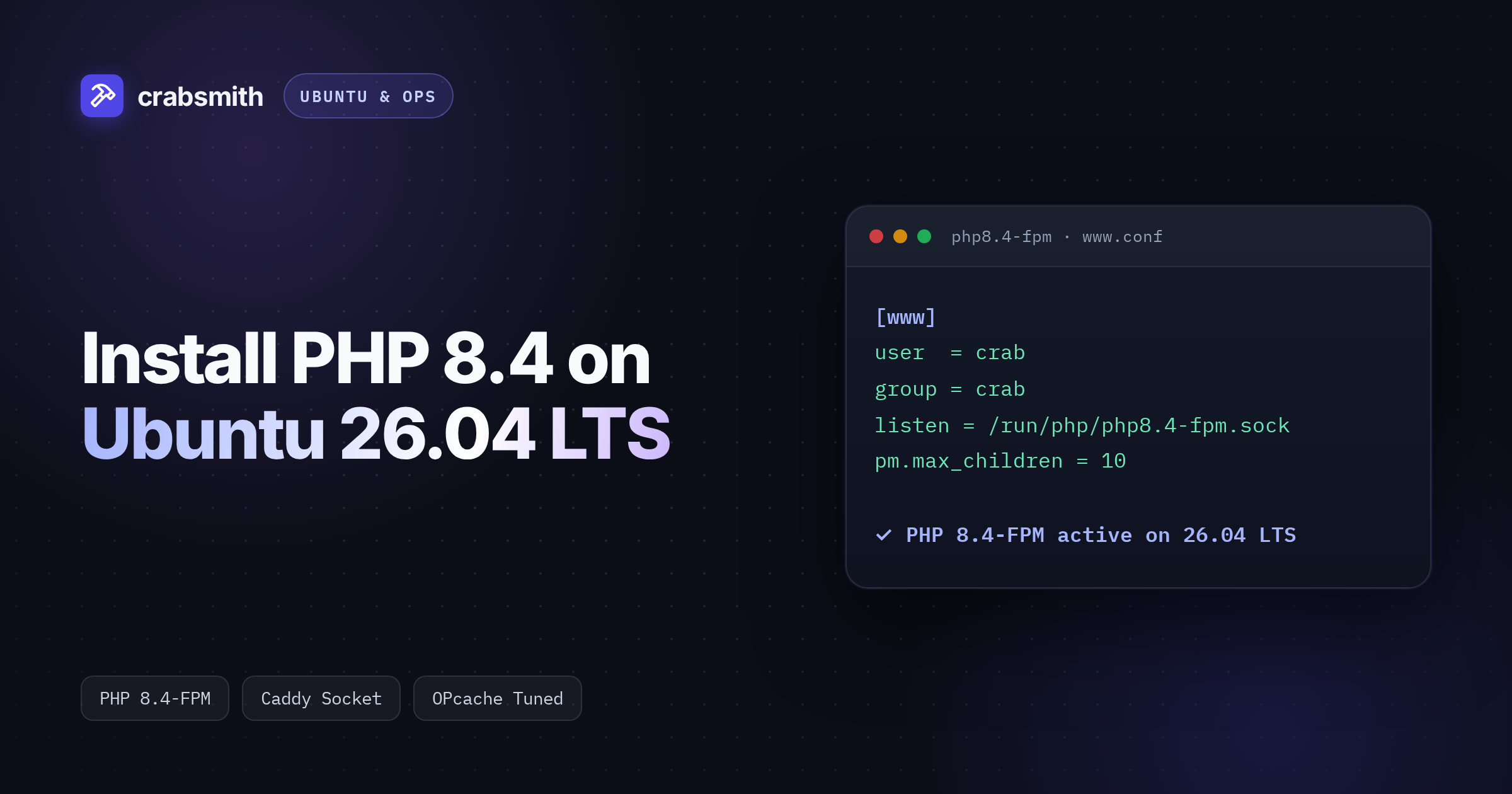
On this page
Getting Ubuntu 26.04 PHP 8.4 set up cleanly on a fresh VPS is one of those tasks where knowing how Ubuntu packaging, PHP-FPM pools, and OPcache actually work saves you hours of mysterious 502 Bad Gateway and Permission denied debugging later.
Ubuntu 26.04 LTS is a rock-solid server release, and PHP 8.4 brings property hooks, asymmetric visibility, lazy objects, and solid runtime speedups that make Laravel, Symfony, WordPress, and CrabPHP feel noticeably snappier. The catch is that depending on whether you want the distro's default PHP package or a pinned php8.4-* stack that matches your local dev machine and CI matrix, you need to set up your repositories, FPM socket permissions, CLI alternatives, and production php.ini overrides deliberately.
This guide walks through the entire production setup on Ubuntu 26.04 LTS — from checking what apt already ships to wiring PHP 8.4-FPM cleanly into Caddy with automatic HTTPS, sizing pm.max_children to your real VPS RAM, enabling OPcache safely, deciding whether JIT is worth it, running multiple PHP versions side by side on the same box, and diagnosing FPM bottlenecks in production.
(Setting up a brand-new server from scratch? Run through our Ubuntu 24.04/26.04 server setup checklist first.)
Before You Install: Check What Ubuntu 26.04 Ships by Default
Never blindly copy-paste a PPA command before checking what Ubuntu's own repositories already provide. Run:
sudo apt-get update
apt-cache policy php-fpm php8.4-fpm
Why check first? Two reasons:
- If Ubuntu 26.04's official
main/universerepo already carries the exact PHP version you want and you only need one PHP version on this server, sticking with official Ubuntu security-team packages is super clean. - If you want to pin PHP 8.4 specifically (for example, Ubuntu ships a newer default like PHP 8.5, or you need PHP 8.4 side by side with PHP 8.3 for an older client site), Ondřej Surý's
ppa:ondrej/phprepository is the gold-standard Debian/Ubuntu PHP packaging repo used across the entire PHP ecosystem.
Step 1: Install Ubuntu 26.04 PHP 8.4 and Production Extensions
Let's add ppa:ondrej/php and install PHP 8.4-FPM, the CLI binary, and the extensions modern PHP frameworks (Laravel, Symfony, WordPress, CrabPHP) actually require:
sudo apt-get update && sudo apt-get install -y \
  software-properties-common ca-certificates curl unzip git

sudo add-apt-repository -y ppa:ondrej/php
sudo apt-get update

sudo apt-get install -y \
  php8.4-fpm php8.4-cli php8.4-common \
  php8.4-mbstring php8.4-xml php8.4-curl \
  php8.4-zip php8.4-bcmath php8.4-intl \
  php8.4-mysql php8.4-pgsql php8.4-sqlite3 php8.4-redis \
  php8.4-gd
(Running image-heavy apps with Spatie Media Library or Intervention Image? Swap or add php8.4-imagick if you need ImageMagick formats like HEIC/WebP conversion.)
Verify both the CLI version and that the FPM systemd service booted cleanly:
php8.4 -v
php8.4 -m | sort
systemctl status php8.4-fpm --no-pager
Pin the Default php CLI Binary (Especially If Multiple Versions Exist)
If your server ever ends up with more than one PHP version installed, check where /usr/bin/php points so Composer, cron jobs, and artisan commands never accidentally run the wrong binary:
sudo update-alternatives --set php /usr/bin/php8.4
php -v
That single line prevents the classic "why does the web request use PHP 8.4 while my cron job crashes on PHP 8.5?" mystery.
Step 2: Install Composer Globally
Never install Ubuntu's ancient apt install composer package — it lags way behind and pulls in extra distro PHP dependencies you don't want. Grab the official Composer PHAR directly:
curl -sS https://getcomposer.org/installer | php
sudo mv composer.phar /usr/local/bin/composer
sudo chmod +x /usr/local/bin/composer
composer --version
Step 3: Fix PHP-FPM Pool Permissions (Stop Fighting www-data)
Ubuntu's default PHP-FPM pool at /etc/php/8.4/fpm/pool.d/www.conf runs workers as www-data:www-data. That immediately creates friction on any modern VPS where your deploy user (crab) owns /home/crab/sites/app.example.com:
composer installandgit pullwrite files owned bycrab:crab.- PHP-FPM tries to write logs to
storage/logs/laravel.logaswww-dataand explodes withPermission denied. - Developers panic and run
chmod -R 777 storage, which is terrible security hygiene.
Fix ownership cleanly at the pool level instead. Edit /etc/php/8.4/fpm/pool.d/www.conf:
[www]
user = crab
group = crab

listen = /run/php/php8.4-fpm.sock
listen.owner = caddy
listen.group = caddy
listen.mode = 0660

pm = dynamic
pm.max_children = 16
pm.start_servers = 2
pm.min_spare_servers = 2
pm.max_spare_servers = 6
pm.max_requests = 500
pm.process_idle_timeout = 10s
Notice the clean separation of privileges here:
- PHP-FPM workers run as
crab:crab, matching your deployed files andstorage/cleanly with zerochmod 777hacks. - The Unix socket (
/run/php/php8.4-fpm.sock) is owned bycaddy:caddy(0660), so Caddy can forward FastCGI requests without running as root or fighting socket permissions.
How to Size pm.max_children Without Crashing Your VPS
Don't guess pm.max_children — calculate it from real memory usage. First check how much resident memory (RSS) your actual PHP-FPM workers use under traffic:
ps --no-headers -o "rss,cmd" -C php-fpm8.4 | awk '{ sum+=$1; n++ } END { if (n>0) printf "Avg worker: %.1f MB (%d procs)\n", sum/n/1024, n }'
A typical Laravel or Symfony worker uses 45–65 MB of RAM. Leave comfortable headroom for Ubuntu, Caddy, PostgreSQL/MySQL, and Redis, then divide remaining RAM by 60 MB:
| VPS RAM | Recommended pm.max_children (app + DB on same box) |
Recommended pm.max_children (app-only server) |
|---|---|---|
| 1 GB | 6–8 |
10–12 |
| 2 GB | 10–14 |
20–24 |
| 4 GB | 20–30 |
45–55 |
| 8 GB | 50–70 |
90–110 |
Always set pm.max_requests = 500 (or 1000) so workers gracefully recycle and never leak memory over weeks of uptime.
Step 4: Tune Production php.ini, OPcache, and JIT
Never edit /etc/php/8.4/fpm/php.ini directly — Ubuntu package updates will nag you with config-diff prompts. Drop a clean override file at /etc/php/8.4/fpm/conf.d/99-production.ini instead:
; Security hygiene
expose_php = Off
display_errors = Off
display_startup_errors = Off
log_errors = On

; Practical limits
memory_limit = 256M
max_execution_time = 60
upload_max_filesize = 32M
post_max_size = 32M

; OPcache for maximum production throughput
opcache.enable = 1
opcache.memory_consumption = 128
opcache.interned_strings_buffer = 16
opcache.max_accelerated_files = 20000
opcache.validate_timestamps = 0
opcache.save_comments = 1
Remember that Ubuntu keeps separate configuration directories for FPM (/etc/php/8.4/fpm/conf.d/) and CLI (/etc/php/8.4/cli/conf.d/). That's actually a feature: your web requests stay capped at 256M and 60s while Composer, queue workers, and heavy Artisan imports on the CLI can use their own memory limits without opening your HTTP pool to runaway requests.
Two important notes on those OPcache lines:
opcache.validate_timestamps = 0stops PHP from runningstat()syscalls on every PHP file on every single HTTP request. That's a massive free latency win — just remember to runsudo systemctl reload php8.4-fpmat the end of every deploy so OPcache flushes stale bytecode.opcache.save_comments = 1is required if your app uses PHP attributes/annotations or Doctrine/Symfony metadata parsers. Never disable it blindly.
Should You Enable PHP 8.4 JIT for a Web App?
Every time a new PHP release drops, someone asks whether to flip on opcache.jit=tracing. My honest take from production: skip JIT on standard CRUD web apps (Laravel, WordPress, Symfony) unless you've benchmarked your specific workload. Standard web requests are I/O-bound (waiting on PostgreSQL, MySQL, Redis, or external APIs), so JIT adds ~64–128 MB of shared memory overhead for roughly 1–3% real-world latency difference. Where PHP 8.4's improved IR-based JIT does shine is CPU-heavy CLI workers — parsing huge CSVs, running math/scoring loops, or long-lived Swoole/RoadRunner/FrankenPHP processes.
Validate your configuration and restart PHP-FPM:
sudo php-fpm8.4 -t && sudo systemctl restart php8.4-fpm
Step 5: Wire PHP 8.4-FPM to Caddy (Automatic HTTPS)
With the socket owned by caddy:caddy, hooking up a production site in /etc/caddy/sites/app.example.com.caddy takes 12 lines:
app.example.com {
    root * /home/crab/sites/app.example.com/public
    encode zstd gzip

    @blocked path /.env* /.git* /storage/* /vendor/*
    respond @blocked 404

    php_fastcgi unix//run/php/php8.4-fpm.sock
    file_server
}
Validate and reload Caddy:
sudo caddy validate --config /etc/caddy/Caddyfile && sudo systemctl reload caddy
(Want Cloudflare Flexible SSL, WebSockets, or structured JSON access logs? Check our full Caddy vs Nginx for Laravel guide.)
Step 6: Running Multiple PHP Versions Side by Side on Ubuntu 26.04
One of the nicest perks of ppa:ondrej/php paired with Caddy is how effortlessly you can run two PHP versions on the exact same server — say, PHP 8.4 for your new Laravel 12 app and PHP 8.3 for a legacy WordPress or client site you haven't upgraded yet.
Because each version installs into its own directory (/etc/php/8.3/ and /etc/php/8.4/) and binds its own Unix socket (/run/php/php8.3-fpm.sock vs /run/php/php8.4-fpm.sock), they never collide. In Caddy, each site simply points to its own socket:
legacy.example.com {
    root * /home/crab/sites/legacy.example.com/public
    php_fastcgi unix//run/php/php8.3-fpm.sock
    file_server
}

newapp.example.com {
    root * /home/crab/sites/newapp.example.com/public
    php_fastcgi unix//run/php/php8.4-fpm.sock
    file_server
}
And in cron jobs or systemd queue workers for each site, call the explicit binary path (/usr/bin/php8.3 or /usr/bin/php8.4) so neither site ever depends on the global /usr/bin/php symlink. That's a tiny habit that saves you from baffling upgrade bugs months down the road.
Step 7: Debugging PHP 8.4-FPM & Zero-Downtime Reloads
Keep these diagnostic commands in your muscle memory — they solve 95% of PHP-FPM issues in under 60 seconds:
# 1. Check FPM service logs for max_children warnings or segfaults
journalctl -u php8.4-fpm -n 50 --no-pager

# 2. Verify socket exists and has the right owner/mode
ls -la /run/php/php8.4-fpm.sock

# 3. Inspect loaded ini files & confirm 99-production.ini is active
php8.4 --ini
php-fpm8.4 -i | grep -E 'opcache.enable|opcache.validate_timestamps|memory_limit'
Also enable FPM's built-in slowlog in /etc/php/8.4/fpm/pool.d/www.conf (request_slowlog_timeout = 5s and slowlog = /var/log/php8.4-fpm.slow.log) whenever you're hunting intermittent latency spikes. The slowlog dumps the exact PHP stack trace of any request taking longer than 5 seconds — far faster than guessing which controller or third-party API call is hanging.
And during deploys, always use sudo systemctl reload php8.4-fpm (never restart): reload sends USR2 to the FPM master process, which gracefully finishes active HTTP requests before spawning fresh workers with the updated OPcache.
Let Crabsmith Manage PHP 8.4 on Ubuntu 26.04 Over Agentless SSH
Crabsmith is a hosted control panel built natively for Ubuntu 24.04 LTS and Ubuntu 26.04 LTS. Connect your server over agentless SSH, install PHP 8.4 and Caddy with one click in Services, and ship code from GitHub with automatic PHP-FPM reloads in Deploys and Laravel guide.
Every step runs readable Bash scripts you can inspect, zero proprietary agents stay on your VPS, and your Ubuntu machine stays 100% yours. Start a 7-day free trial (no credit card required) — plans start at $5/mo for 2 servers or $12/mo for unlimited servers.